 GLOBEWICK
Google Search Console: Setup, Reports and Monthly Checklist
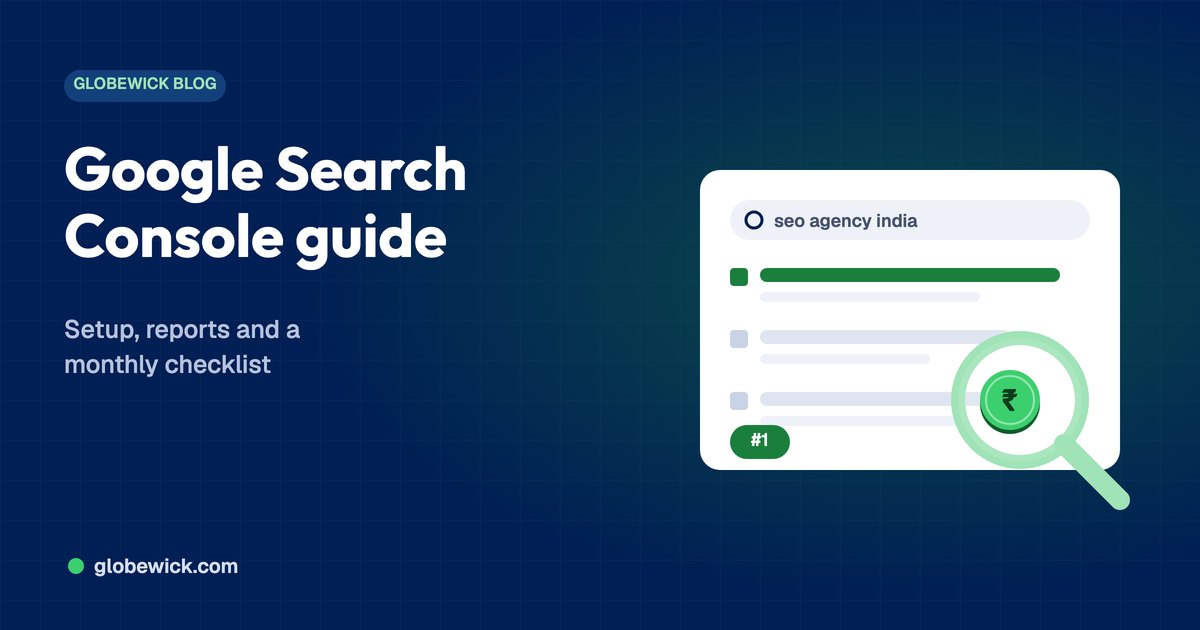
Google Search Console is a free tool from Google that shows how your website performs in Google Search: which searches you appear for, your clicks and positions, which pages are indexed, and any errors or penalties. It was called Google Webmaster Tools until 2015. Every website owner should set it up, because it is the only place to see Google's own data about your site and to ask Google to crawl new pages. This guide covers setup, each main report and the checks worth doing every month.
"Google search console" was searched 100,000 to 1 million times a month in both India and the United States, according to Google Ads Keyword Planner data we pulled in November 2026. Many people still search for the old name, "Google Webmaster Tools".
How to set up Google Search Console
- Go to Google Search Console and sign in with a Google account.
- Choose a property type:
- Domain property: covers every version of your site (http, https, www and subdomains). Verified by adding a DNS TXT record at your domain provider. Recommended.
- URL-prefix property: covers one exact address. Can be verified with an HTML file, a meta tag, Google Analytics or Google Tag Manager.
- Complete verification. Data starts appearing within a few days.
- Submit your sitemap under Sitemaps, for example yoursite.com/sitemap.xml.
- Add team members under Settings, Users and permissions, rather than sharing your login.
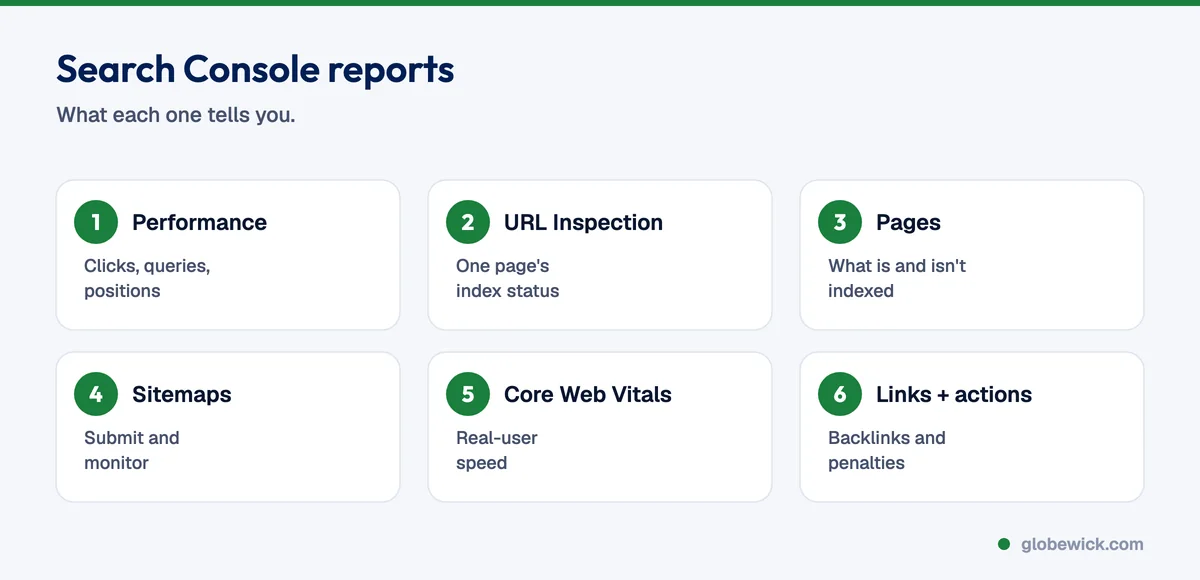
The main Search Console reports
Performance
Shows clicks, impressions, click-through rate and average position, by search query, page, country, device and date. Data covers the last 16 months and usually runs two to three days behind. Use it to find:
- Queries where you rank in positions 8 to 20, which are your quickest wins.
- Pages with many impressions but a low click-through rate, which need better titles and descriptions.
- Pages losing clicks over time, which need refreshing.
URL Inspection
Paste any URL from your site to see whether it is indexed, when Google last crawled it, which canonical Google chose and whether it is mobile-friendly. Click Request indexing after publishing or updating an important page. There is a daily limit, so use it for pages that matter.
Pages (indexing)
Lists indexed and non-indexed pages, with the reason for each. Common reasons include "Crawled, currently not indexed", "Discovered, currently not indexed", "Duplicate without user-selected canonical", "Excluded by noindex tag" and "Not found (404)". Not every excluded page is a problem. Focus on important pages that should be indexed.
Sitemaps
Submit and monitor XML sitemaps, and see how many URLs Google found in each.
Experience: Core Web Vitals and HTTPS
Shows whether real users experience your pages as fast and stable on mobile and desktop, and whether pages are served over HTTPS. See why site speed matters for SEO and conversion.
Links
Shows your top linked pages, top linking sites and internal links. See how to check backlinks.
Manual actions and Security issues
Tells you if Google has penalised your site for spam or found hacking or malware. Ideally both say "No issues detected".
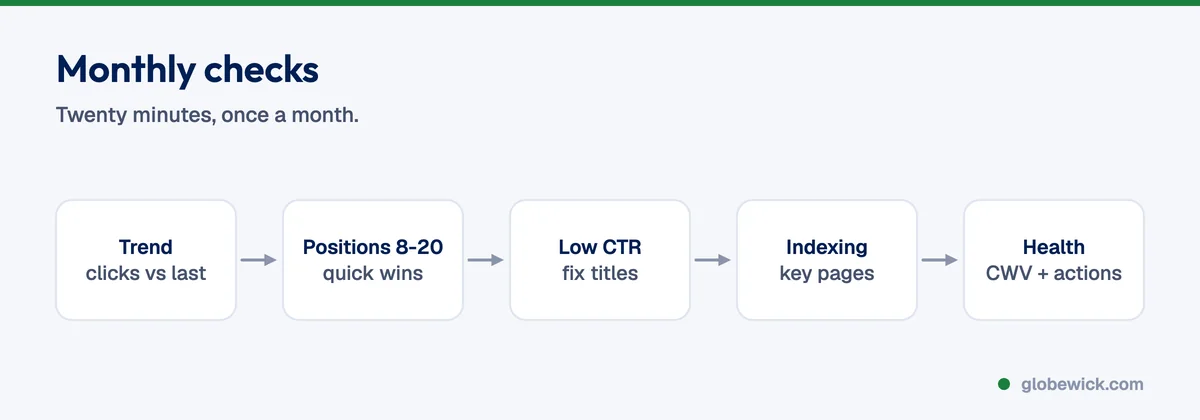
A 20-minute monthly Search Console routine
- Compare clicks and impressions with the previous period in Performance.
- Filter queries by position and list those between 8 and 20. Improve those pages.
- Sort pages by impressions and check those with a low click-through rate. Rewrite titles and meta descriptions.
- Check the Pages report for new errors on important URLs.
- Check Core Web Vitals, Manual actions and Security issues.
- Inspect and request indexing for any new or updated key pages.
Search Console vs Google Analytics
Search Console shows what happens before the click: searches, impressions, rankings and indexing. Google Analytics (GA4) shows what happens after the click: what visitors do and whether they convert. Link the two in GA4 to see both together.
Common problems and fixes
- Page not indexed: check for noindex tags, robots.txt blocks and thin or duplicate content, then improve the page and request indexing.
- Sitemap "Couldn't fetch": make sure the sitemap URL loads, returns a 200 status and is valid XML.
- Sudden drop in clicks: check for technical errors, a manual action, a Google update or seasonal demand.
To act on what you find, follow our step-by-step guide to doing SEO and the technical SEO basics. For other tools, see the best SEO tools. Need it handled? See our SEO services.
FAQ
Is Google Search Console free?
Yes. It is completely free for any website owner.
Is Google Webmaster Tools the same as Search Console?
Yes. Google renamed Webmaster Tools to Search Console in 2015.
How long until data shows in Search Console?
Usually a few days after verification. Performance data then updates daily, with a delay of about two to three days.